
Sugukuru Taiki — Free Gifts
In 5 minutesa security checkup and
a video experiencefree of charge
Drop in your video, and narration and captions are added, so it’s finished with one click.
Sugukuru Taiki — Free Gifts
Drop in your video, and narration and captions are added, so it’s finished with one click.
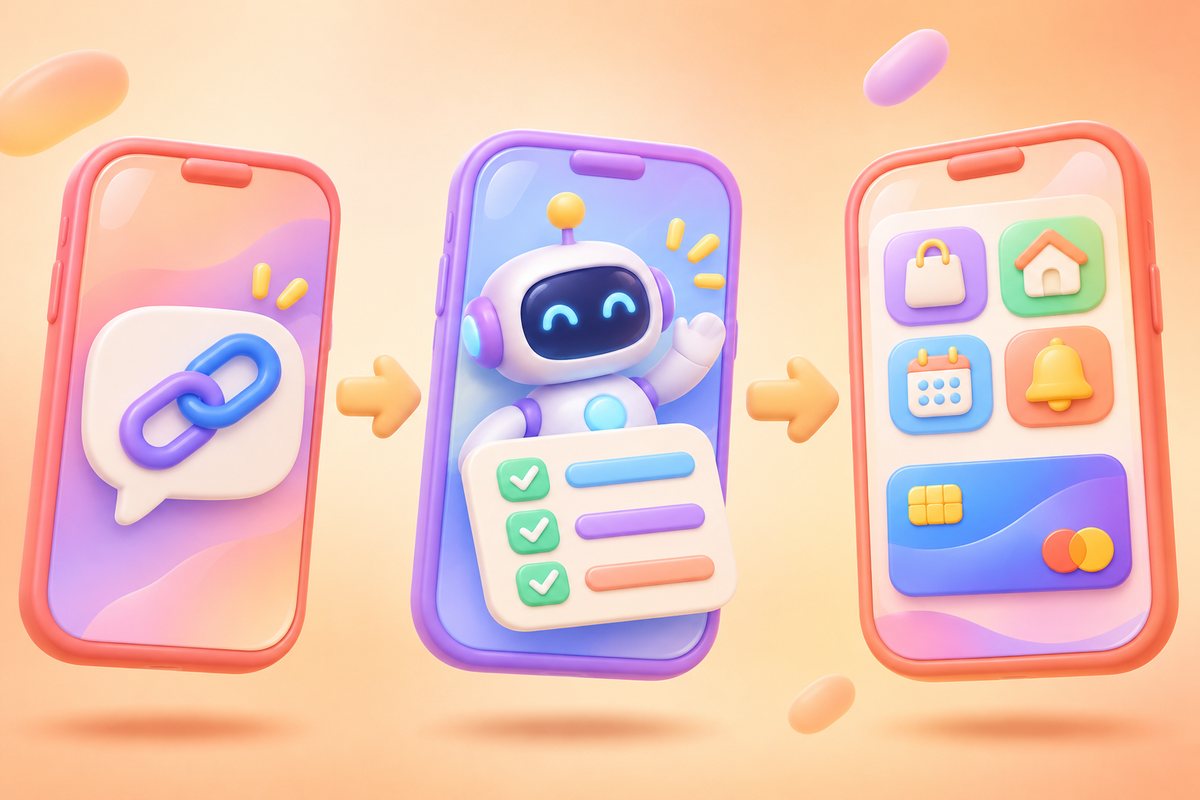
Connect AI and GitHub, and try building one app that runs on your own smartphone. The AI guides you one step at a time.
Start on your smartphone (tap from top to bottom)
① Just click “Create repository” (the name and private setting are already filled in) → ② Click it (it opens with the message ready to send) → Approve GitHub approval the first time → Send.(How it connects)
For Claude users (first time only)
1. Press ② → On the Code screen, select “Connect to GitHub” → Approve on the GitHub screen
2. If your copy doesn’t appear in the list: Claude’s GitHub App → Your account → Select the copy you created → Install
3. Select the copy on the Code screen → Send the text as is
For Codex users (first time only—on a phone browser)
1. Go to chatgpt.com/codex → Settings → Codex Cloud → Environments → Create environment
2. Press “Connect GitHub” → Approve on the GitHub screen, then allow the copy you created
3. Select the copy → Get started → Publish → Start a new task → Paste and send the text from ③
※ You can’t create an environment in the phone app (use a browser). From the second time onward, just select the environment in the app. When you Merge the change proposal (PR) that arrives after completion on GitHub, it will be saved.
You won’t type anything or connect to GitHub. You also won’t give the AI your password or keys.
With Claude Code on a computer (just paste it)
The AI will automatically handle everything from creating your personal copy through setup (you only need to log in to GitHub yourself). Original template: sugukuru-app-free
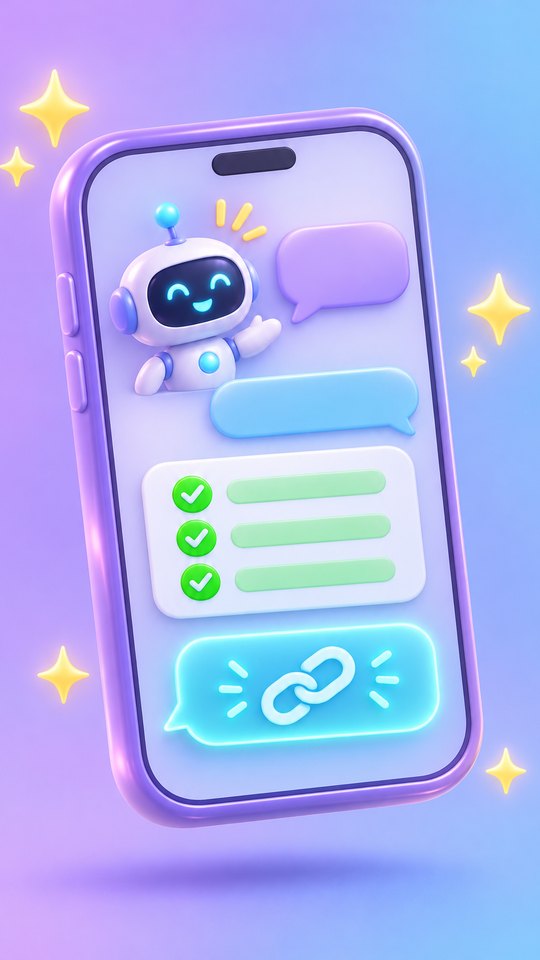 *The screen and illustrations are examples.
 Ask the AI, get an appA checklist, step cards, a simple calculator — just ask in plain words.
 Saved to GitHub automaticallyEvery change — what and when — is kept.
 Use it on your own phoneOpen it and add it to your home screen to use it like an app.
 Fix it or roll backDon’t like a change? Ask the AI to go back to an earlier version.
No server or registration fees (a Claude or ChatGPT plan is required). Sharing data across a team, AI that answers questions, and accepting orders or payments are covered in the paid kits.
*These are personal impressions shared with permission. Results such as being able to publish or generate sales are not guaranteed.
*This is a web app used through a smartphone browser and home screen, not an App Store or Google Play app. To open it with only a smartphone, GitHub’s free plan requires the repo to be public (visible to anyone). Before making it public, the AI checks that no personal information or keys are inside.
Your idea can start here, too.
Start on your smartphone (tap from top to bottom)
① Just click “Create repository” (the name and private setting are already filled in) → ② Click it (it opens with the message ready to send) → Approve GitHub approval the first time → Send.(How it connects)
For Claude users (first time only)
1. Press ② → On the Code screen, select “Connect to GitHub” → Approve on the GitHub screen
2. If your copy doesn’t appear in the list: Claude’s GitHub App → Your account → Select the copy you created → Install
3. Select the copy on the Code screen → Send the text as is
For Codex users (first time only—on a phone browser)
1. Go to chatgpt.com/codex → Settings → Codex Cloud → Environments → Create environment
2. Press “Connect GitHub” → Approve on the GitHub screen, then allow the copy you created
3. Select the copy → Get started → Publish → Start a new task → Paste and send the text from ③
※ You can’t create an environment in the phone app (use a browser). From the second time onward, just select the environment in the app. When you Merge the change proposal (PR) that arrives after completion on GitHub, it will be saved.
You won’t type anything or connect to GitHub. You also won’t give the AI your password or keys.
With Claude Code on a computer (just paste it)
The AI will automatically handle everything from creating your personal copy through setup (you only need to log in to GitHub yourself). Original template: sns-umarekawaru-free
 Type “Post: ◯◯” to get today’s complete post packageGet 3 hook ideas, body text, hashtags, a timed script, copy, script, thumbnail ideas, and posting time on one sheet. If the environment can generate images with AI, it will; otherwise, it provides instructions for creating them in your own app.
 Includes the “format” used by social media management servicesBefore you publish, the AI identifies hook formats, platform-specific lengths and tags, posting times, 3 thumbnail options to choose from, comment-reply ideas, a 3-stage response for viral backlash, and checkpoints for undisclosed advertising, pharmaceutical advertising rules, and consent (you make the final check yourself).
 Your winning patterns grow with every useEach week, add the “formats that work” and “things you stopped doing” from your numbers, then use them from the start of your next plan. What grows is a guide for your account—not the AI.
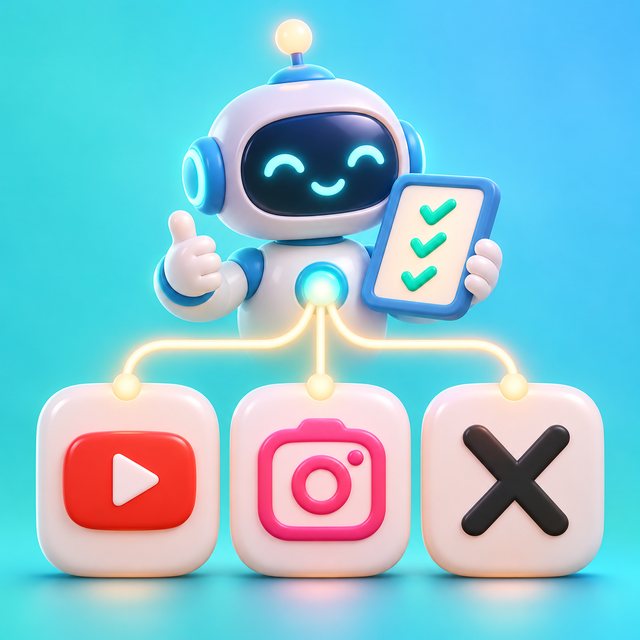 YouTube, Instagram, and X in one workflowRepurpose one piece of content across all social platforms. The official requirements for collecting metrics, posting, and scheduling are compiled with sources.
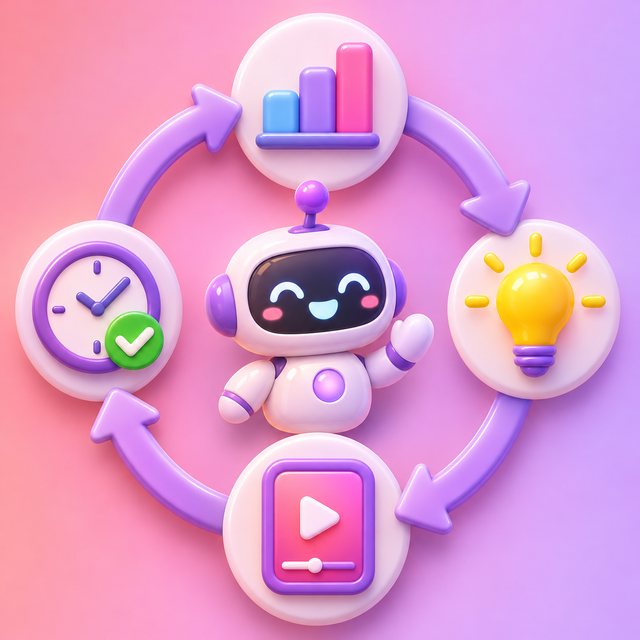 Run a weekly “improvement round”Import the numbers → reread X’s public algorithm → analyze → plan → create → schedule. Follow the same order for 20–30 minutes a week.
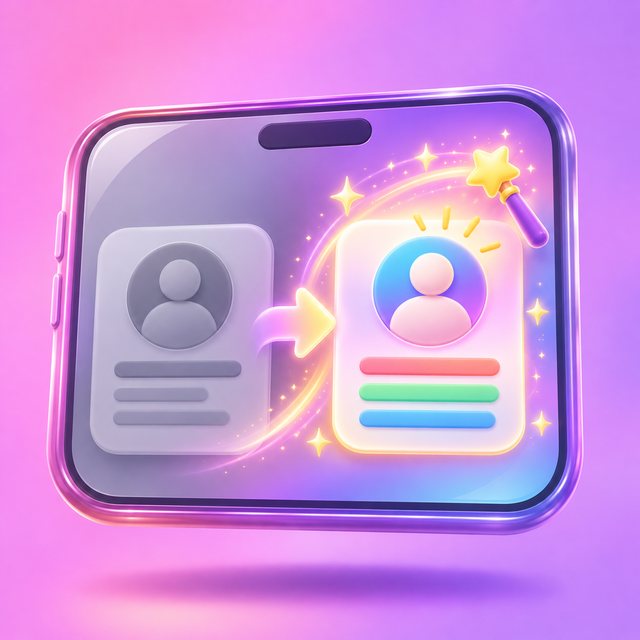 Give your account a fresh startPut who you are, what you do, and why you in one line. Rewrite your profile and pinned post with AI.
 Understand why something grewFrom past post metrics, the AI identifies why something grew and what people want next. Even with fewer than 10 posts, you can start from example formats.
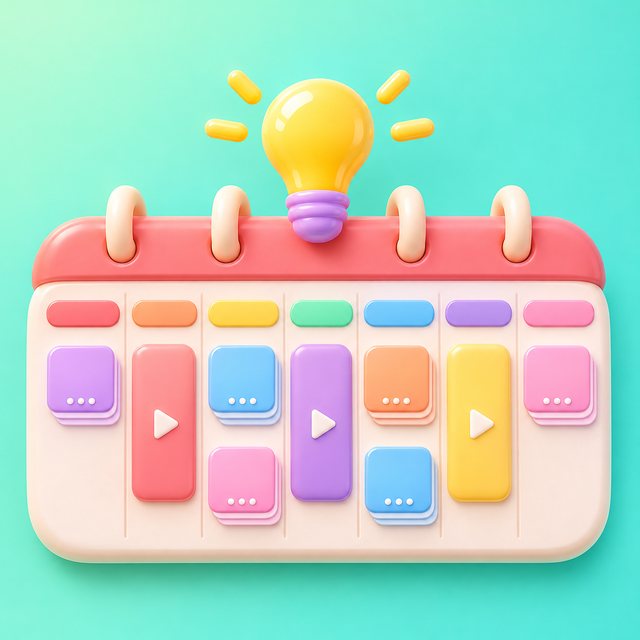 Get a week of plans readyFormats, opening lines, and posting times included. Delivered as a calendar.
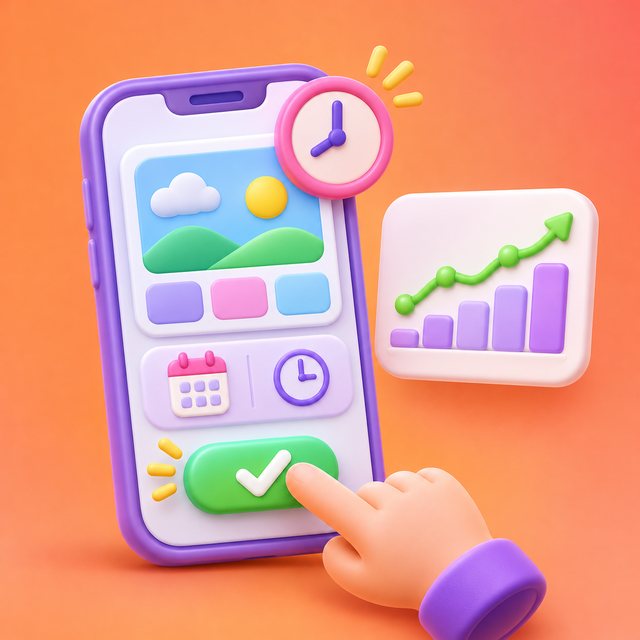 Create thumbnails and schedule postsCreate thumbnails with Codex or Gemini. Save images in the GitHub app → schedule in YouTube Studio or Meta Business Suite. You press the final confirmation button.
 Everything is saved in your private repoScripts, images, metrics, and winning patterns stay in your GitHub and never reach us. Includes approval records for company use.
What to do during the weekly “improvement round”
*Images are illustrations. Followers, views, and sales are not guaranteed. A Claude or ChatGPT subscription is required. Use the official free social media features, and enter passwords and confirm posts yourself. Redistribution permitted; commercial use prohibited (CC BY-NC 4.0).
Just read the script displayed on screen (teleprompter) and record. Choose a format, and a video with headings and captions appears right away. The two options below are free. Just add Git to the AI you use, and you can get started with one smartphone.
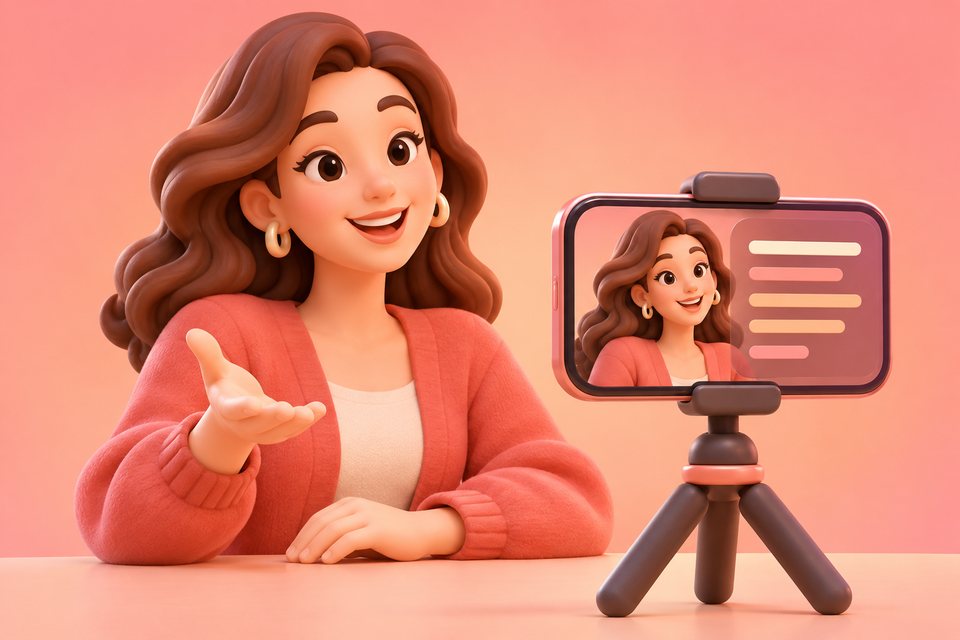 ① Read the script and recordThe script appears on screen. No problem if speaking is difficult.
 ② AI finishes itWith headings and captions. Two versions: vertical and horizontal.
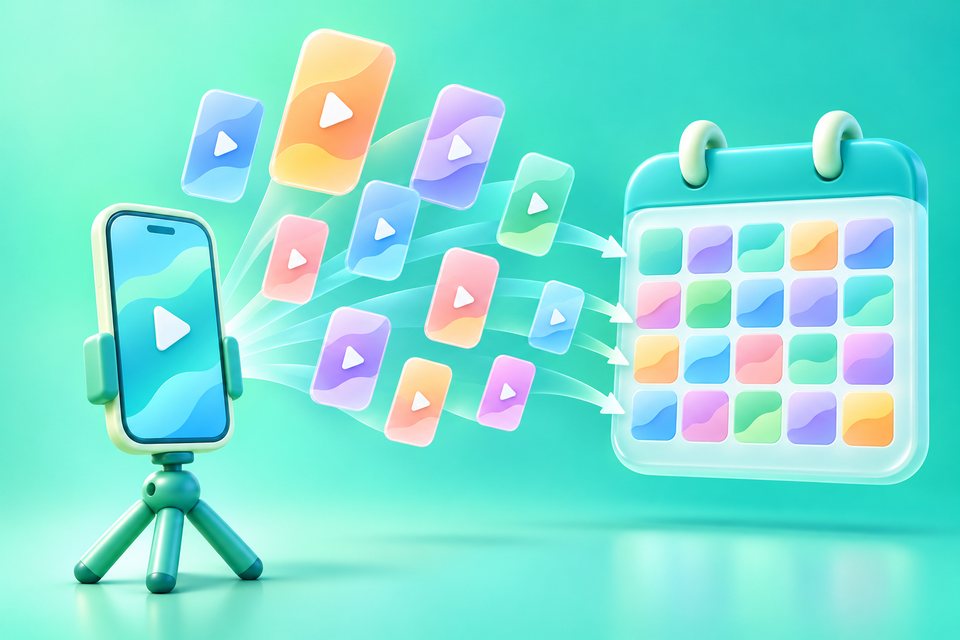 ③ Produce Shorts in volumeChange the format and make them again and again.
Record with your smartphone’s front-facing camera while reading the script.
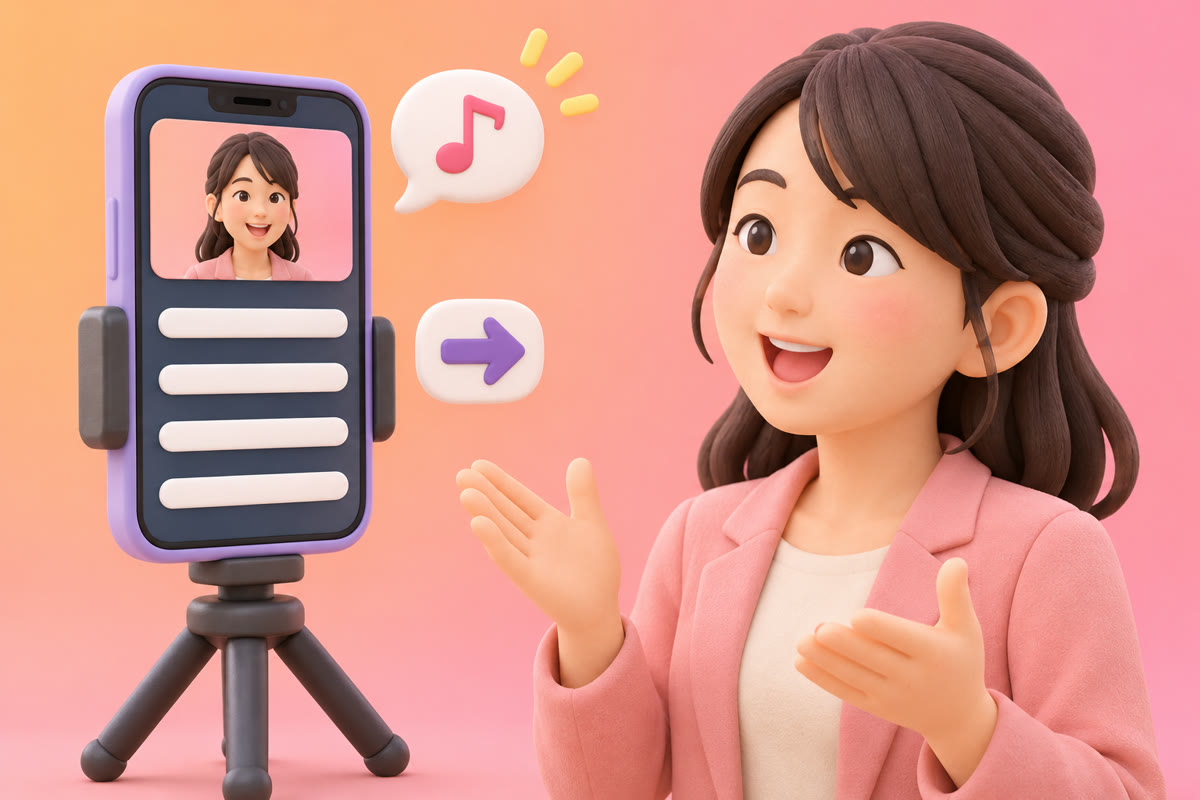
Tell the AI what you want to say, and it creates a script for each scene. When recording, the script appears on screen, and recording starts when you hear a beep.
When you finish reading, just say “Next” to move to the next scene’s script. You can also choose whether to include narration (reading the questions aloud).
Start on your smartphone (tap from top to bottom)
① Just click “Create repository” (the name and private setting are already filled in) → ② Click it (it opens with the message ready to send) → Approve GitHub approval the first time → Send.(How it connects)
For Claude users (first time only)
1. Press ② → On the Code screen, select “Connect to GitHub” → Approve on the GitHub screen
2. If your copy doesn’t appear in the list: Claude’s GitHub App → Your account → Select the copy you created → Install
3. Select the copy on the Code screen → Send the text as is
For Codex users (first time only—on a phone browser)
1. Go to chatgpt.com/codex → Settings → Codex Cloud → Environments → Create environment
2. Press “Connect GitHub” → Approve on the GitHub screen, then allow the copy you created
3. Select the copy → Get started → Publish → Start a new task → Paste and send the text from ③
※ You can’t create an environment in the phone app (use a browser). From the second time onward, just select the environment in the app. When you Merge the change proposal (PR) that arrives after completion on GitHub, it will be saved.
You won’t type anything or connect to GitHub. You also won’t give the AI your password or keys.
With Claude Code on a computer (just paste it)
The AI will automatically handle everything from creating your personal copy through setup (you only need to log in to GitHub yourself). Original template: sugukuru-prompter-free
AI turns your recorded video into a polished video using a format.

There are four formats (Just Record / Interview / Time Schedule / Timeline & Self-Introduction). Add a video recorded with the teleprompter to your repo and send “Finish it,” and the AI will apply the format with headings, captions, black labels, and a timeline.
After recording, just tell it which parts were difficult to say. The AI revises the next script so you can repeat record → finish → revise.
Start on your smartphone (tap from top to bottom)
① Just click “Create repository” (the name and private setting are already filled in) → ② Click it (it opens with the message ready to send) → Approve GitHub approval the first time → Send.(How it connects)
For Claude users (first time only)
1. Press ② → On the Code screen, select “Connect to GitHub” → Approve on the GitHub screen
2. If your copy doesn’t appear in the list: Claude’s GitHub App → Your account → Select the copy you created → Install
3. Select the copy on the Code screen → Send the text as is
For Codex users (first time only—on a phone browser)
1. Go to chatgpt.com/codex → Settings → Codex Cloud → Environments → Create environment
2. Press “Connect GitHub” → Approve on the GitHub screen, then allow the copy you created
3. Select the copy → Get started → Publish → Start a new task → Paste and send the text from ③
※ You can’t create an environment in the phone app (use a browser). From the second time onward, just select the environment in the app. When you Merge the change proposal (PR) that arrives after completion on GitHub, it will be saved.
You won’t type anything or connect to GitHub. You also won’t give the AI your password or keys.
With Claude Code on a computer (just paste it)
The AI will automatically handle everything from creating your personal copy through setup (you only need to log in to GitHub yourself). Original template: sugukuru-douga-kata-free
Enter your website URL, and it will check only publicly available information, then suggest things you may want to fix. No registration required. Free.
▶ How the score changes and what is protected before and after adding settings (about 1.5 minutes, synthesized narration and music, fictional demo page)
The entered URL and results are not saved (to limit usage, your connection source is counted for just one hour in a non-reversible form).
We check using the same way as simply opening a public page, plus only public DNS lookups. We do not perform attacks, crawling, or checks after login.